
SOWA Microphone™
Getting started with the SOWA Microphone™.
Follow the visual guide below for setting up your SOWA Microphone™. For the complete and detailed manual, download it via the button below.
Start and connect a microphone
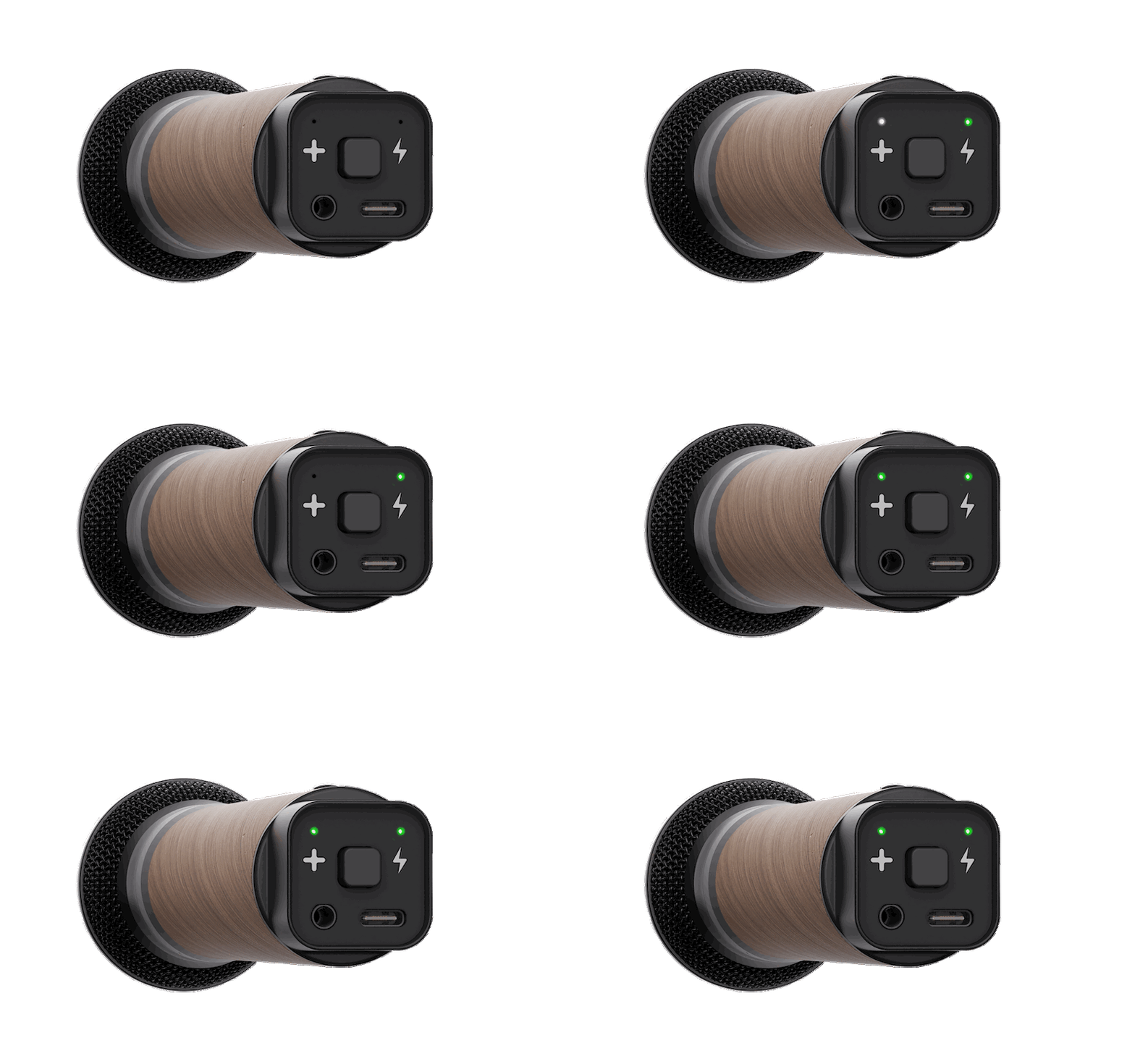
Press the central button. When the Thyra™ light indicator is white, your microphone is searching for a nearby speaker. When the Thyra™ light indicator turns green, it’ has successfully been connected.
Mute the microphone
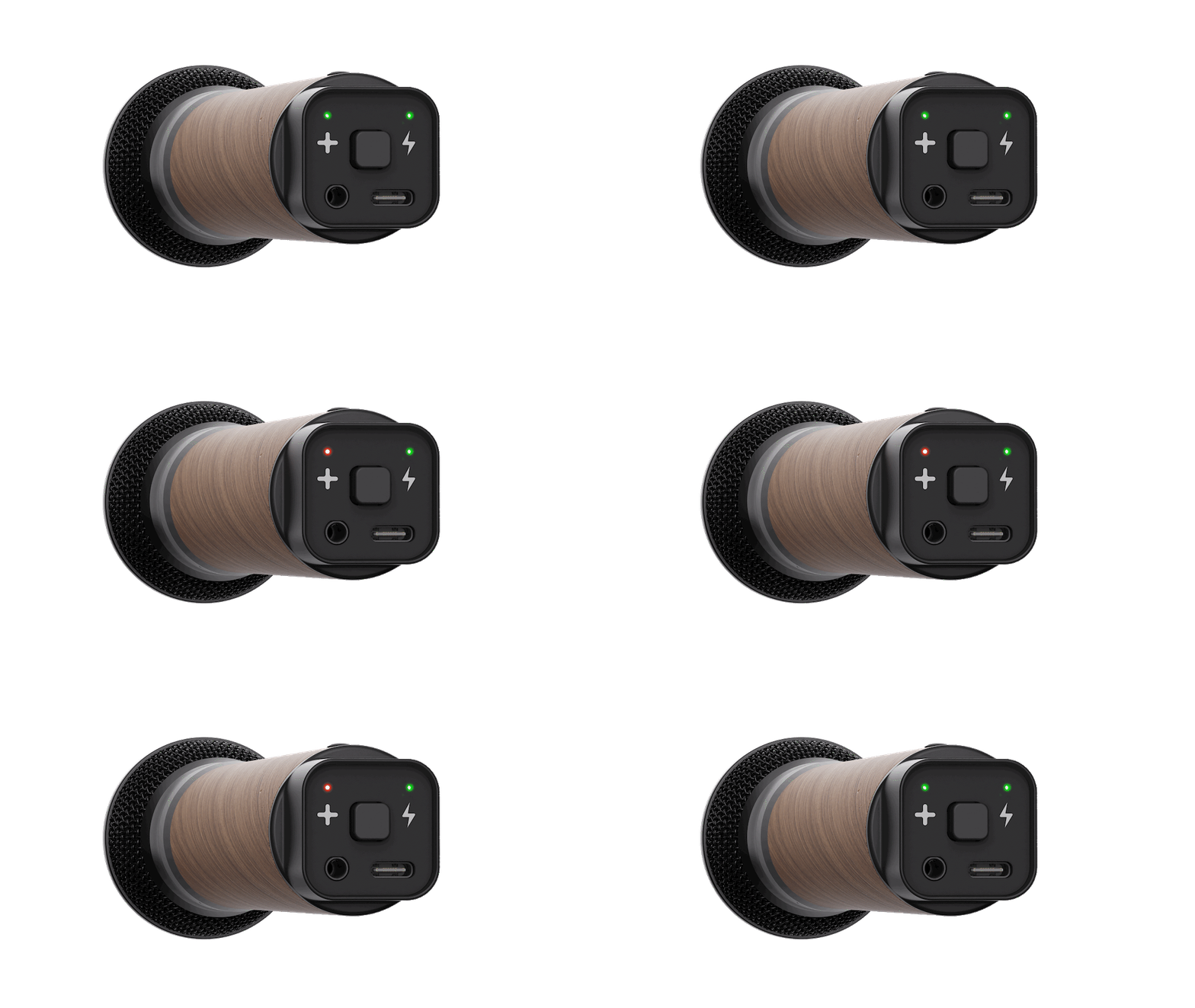
Hold the button for 1 second to mute the microphone. Do the same again to unmute.
Turn off the microphone
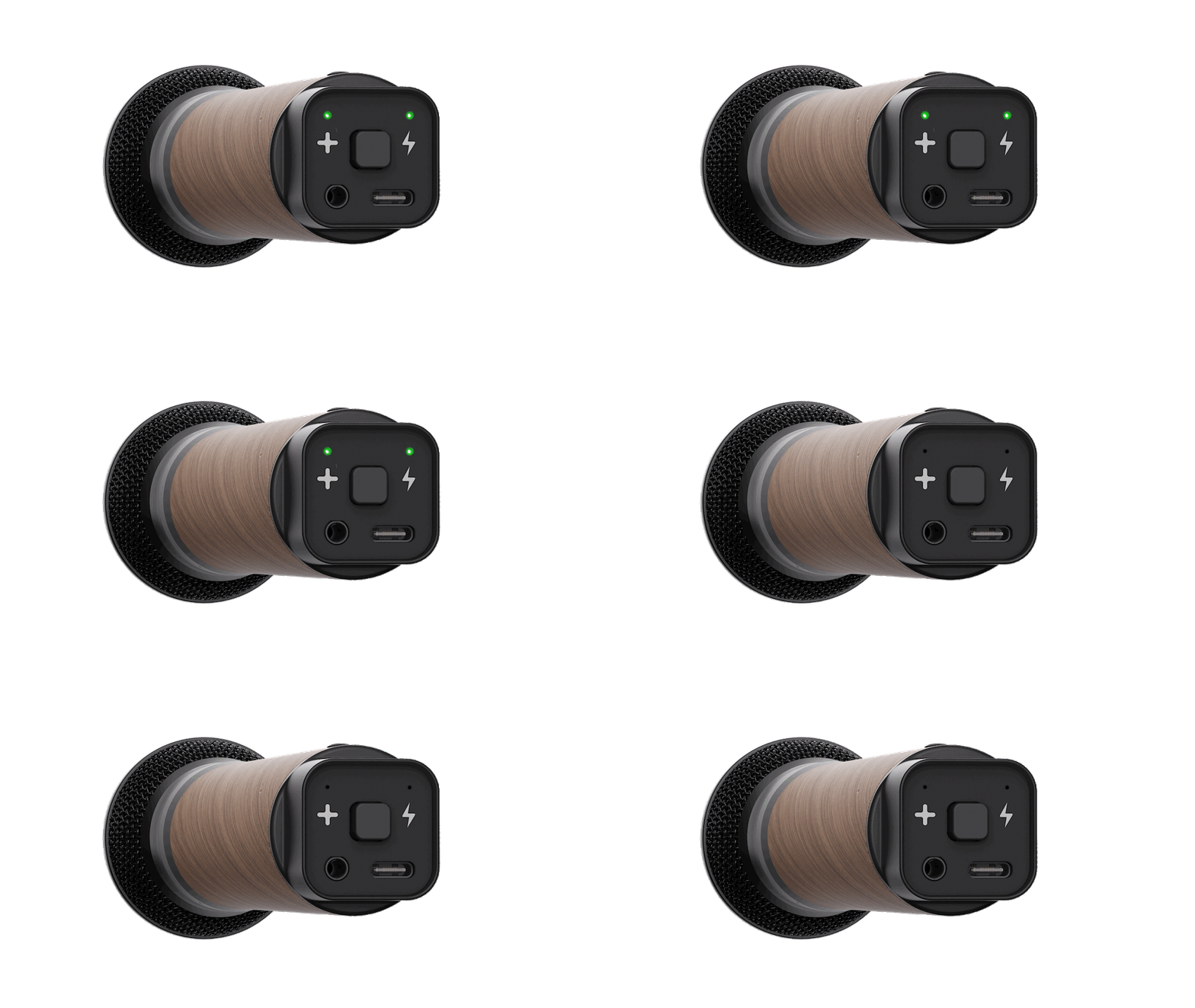
Press and hold the button for 3 seconds. When the light is off, your microphone is turned off.
Additional product features
Headset and belt-pack style solution
1
Plug a headset into the mini jack on the bottom of the speaker and the capsule mutes automatically, making the headset the active input. To use only the headset, screw the included cap onto the capsule opening and store the handle in the pocket for a hands-free setup.
Power off versus sleeping mode
2
Press the button five (5) times, and you now have a audio
Use SOWA Microphone™ as a receiver for the SOWA system
3
The mini-jack port in the microphone can be reversed so that microphone becomes and audio receiver. To access this feature, click the button 5 times. This will make the Thyra LED turn purple. Any audio in the SOWA system can now be tapped via the mini-jack port.
Use a different microphone capsule
4
The SOWA Microphone follows the 1.25” threaded standard for microphone capsules. Any capsule following this standard can be mounted on the SOWA Microphone handle. Additional adapters are available from third party vendors allowing for even greater flexibility and various preferences
Distinguish different microphones
The first microphone connected to the system will have a green Thyra LED. The second microphone will be blue. This allows you to tell which is which making it easier to control individual volume levels.
5
Adjust the Microphone gain
The gain of the microphone can be controlled via the SOWA app, separately from the volume. For optimal audio quality, adjust the gain first and use the volume to set the listening level.
6
Frequently asked questions
-
Choosing between Thyra™ Link and Thyra™ Fixed is simply about what you want to optimize.
Thyra™ Link (CH0) focuses on flexibility and ease. It provides dynamic linking with smart, automatic connections and enables Microphone™. Use Thyra™ Link when you want the fastest setup and the most adaptive linking experience.
Thyra™ Fixed (CH1–CH4) focuses on range and compatibility. It runs on pre-defined channels, enables cross-generation setups, and is required when longer range or maximum system stability is needed.
-
If you microphone input is not heard through the speakers, there may be a few reasons:
The microphone is muted. Press the microphone button once to unmute the microphone. The Thyra LED is red when the microphone is muted.
Update your speaker. The latest SOWA speakers have special updates that ensure a good microphone sound. Update the firmware of the speaker to get these updates.
Turn up the volume of the microphone in the app. The level of the microphone can be controlled in the app. If this turned down, the microphone will not be heard.
-
No, the microphone follows our signature design language, as seen in the Live Series™, featuring the same refined wooden finish.
Read the full manual
Didn’t find what you were looking for?
If there was no answer for your question please do not hesitate to reach out to us and we will answer you as quick as possible.
support@sowasound.com
(45) 42 70 70 75
Dortheavej 6
Copenhagen, DK 2400