
Live Series™, Tour Series™ and Extras
Quick start, Additional features and FAQ.
Below you will find a detailed visual guide that will help you effectively set up and gain a deeper understanding of your new SOWA speakers. For the complete user manual, press the button below.
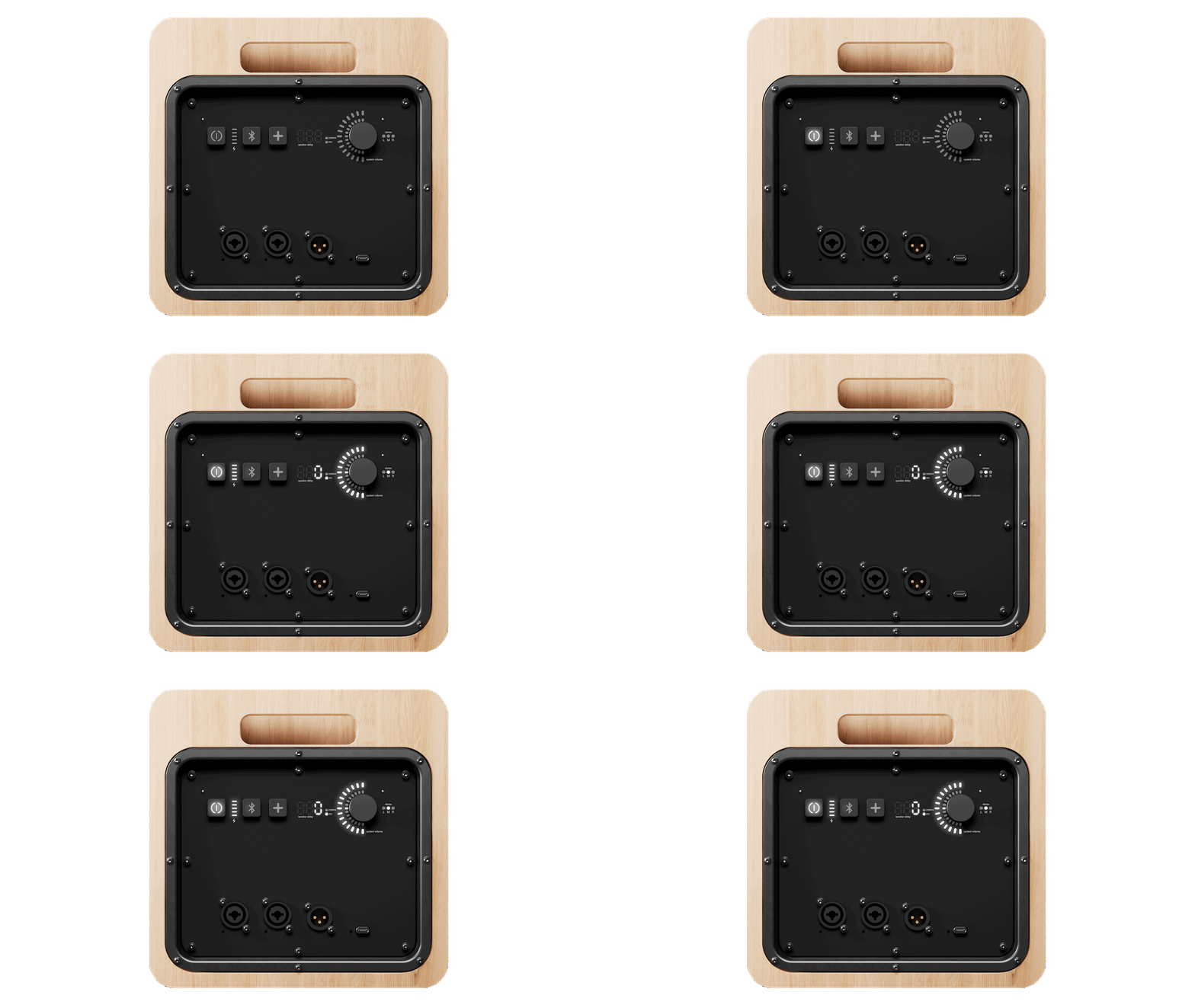
Turning on speaker
Press the start button. When it lights up white, your SOWA speaker is turned on.
Connecting speakers
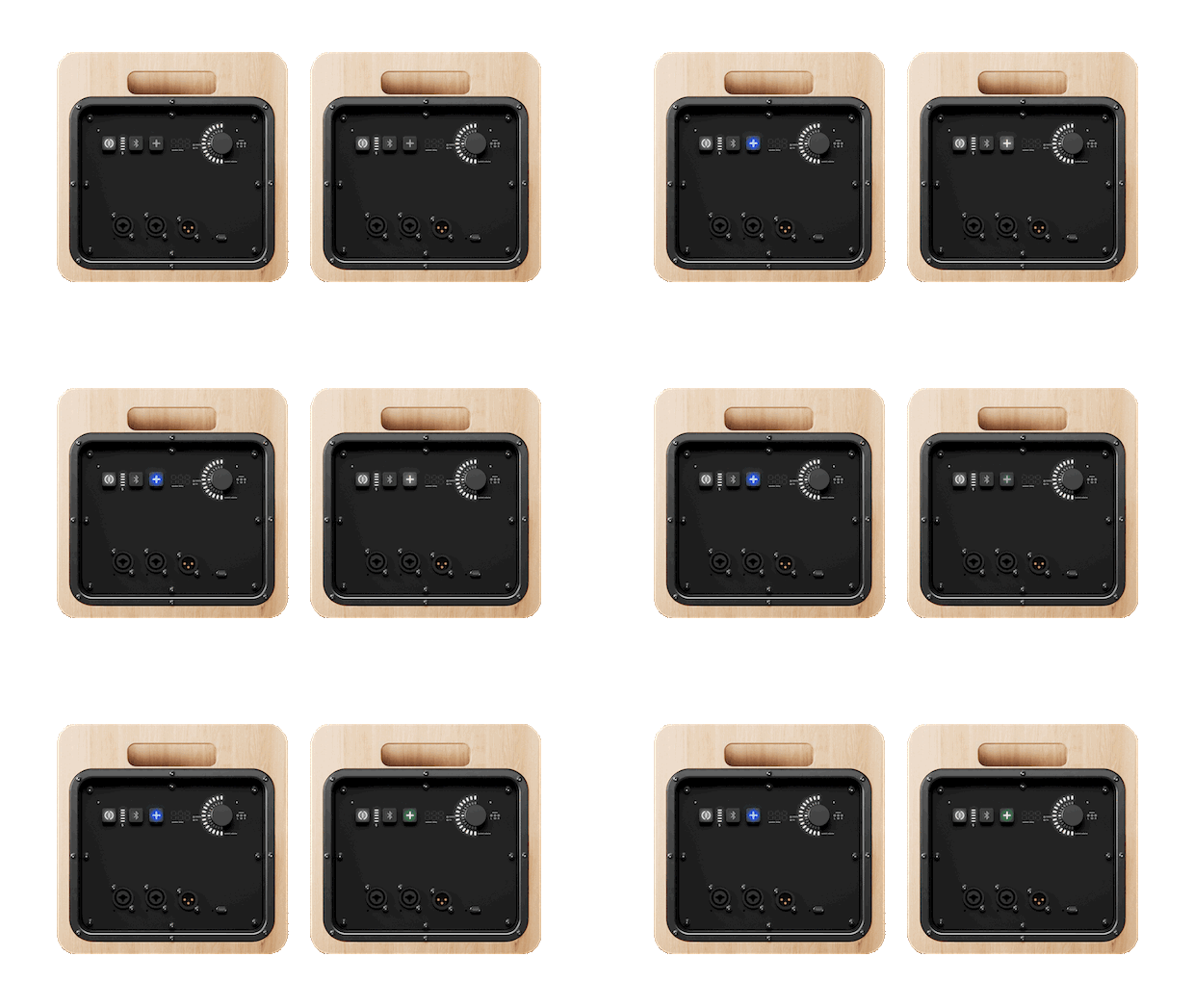
Press one of the speakers to make it the host and start linking; nearby speakers will light up in white. Press the other speaker(s) to join, and press any speaker to stop linking mode. The system is ready.
Additional product features
Hot-swapping the system host
1
Double press the Thyra™ button on a joiner, and it now swaps role to become the host.
There are two ways to turn off your system: Sleep mode and Power off.
Sleep mode (long press): Keeps all previous connections and settings. Use this when you want the system ready to plug-and-play later.
Power off (short press): Shuts the system down and restarts everything.
Power off versus sleeping mode
2
Soundcard possibilities
3
The built-in USB-C soundcard in every unit lets you connect devices to both send or receive audio.
Unlinking the entire system at once
4
To unlink the host and all connected devices at once, hold down the Thyra button on the hosting device.
Expand the SOWA system to external speakers
5
The system audio can be tapped via the XLR output from any speaker, making it possible to add subwoofers or other external products.
In situations where speakers are distributed over a large area for a bigger audience, it the individual delay of speakers can be set by clicking the knob to enter the advanced settings. To change the unit (meters or milliseconds), double-click the knob.
6
Set individual speaker delay
Offsetting the local volume of a speaker
7
By default, the knob controls the system volume. In the advanced settings, which is entered by clicking the knob, the local volume can be set as higher or lower than the system volume.
Create a stereo setup
8
The speakers send a stereo signal to each other. Individual speakers can be set to play mono, left or right. Access the stereo settings through the advanced settings menu by clicking the knob. Set the speakers in the left side of your room to “L” and the speakers in the right side to “R”.
View system status via SOWA App
9
Connect the SOWA App via Bluetooth. Click the bluetooth button quickly twice on the hosting speaker and see it appearing in the front page of the app. After clicking the speaker you have access to mixer settings and you can see battery level of all connected joiners.
UI Lock
10
The UI lock is a UI lock feature that prevents accidental input during a session. The lock can be triggered by pressing the knob and power button at the same time (remote triggering via app coming soon), and displays a lock animation when activated. Locking from the Hosting speaker locks down connected joining speakers. Locking/unlocking on a joining speaker locks that device only.
Frequently asked questions
-
Choosing between Thyra™ Link and Thyra™ Fixed is simply about what you want to optimize.
Thyra™ Link (CH0) focuses on flexibility and ease. It provides dynamic linking with smart, automatic connections and enables Microphone™. Use Thyra™ Link when you want the fastest setup and the most adaptive linking experience.
Thyra™ Fixed (CH1–CH4) focuses on range and compatibility. It runs on pre-defined channels, enables cross-generation setups, and is required when longer range or maximum system stability is needed.
-
All SOWA speakers have multiple wireless SOWA Link radios and multiple strong directional antennas built into the cabinets. This ensures an impressive stability and range.
-
We use ultra efficient amplifiers from Merus, resulting in unrivalled battery life. The built-in battery has a capacity of 97 Wh.
-
Yes, connect the SOWA App via Bluetooth to control the input levels, e.g., XLR inputs, Bluetooth audio, USB and microphones.
Read the full manual
Didn’t find what you were looking for?
If there was no answer for your question please do not hesitate to reach out to us and we will answer you as quick as possible.
support@sowasound.com
(45) 42 70 70 75
Dortheavej 6
Copenhagen, DK 2400